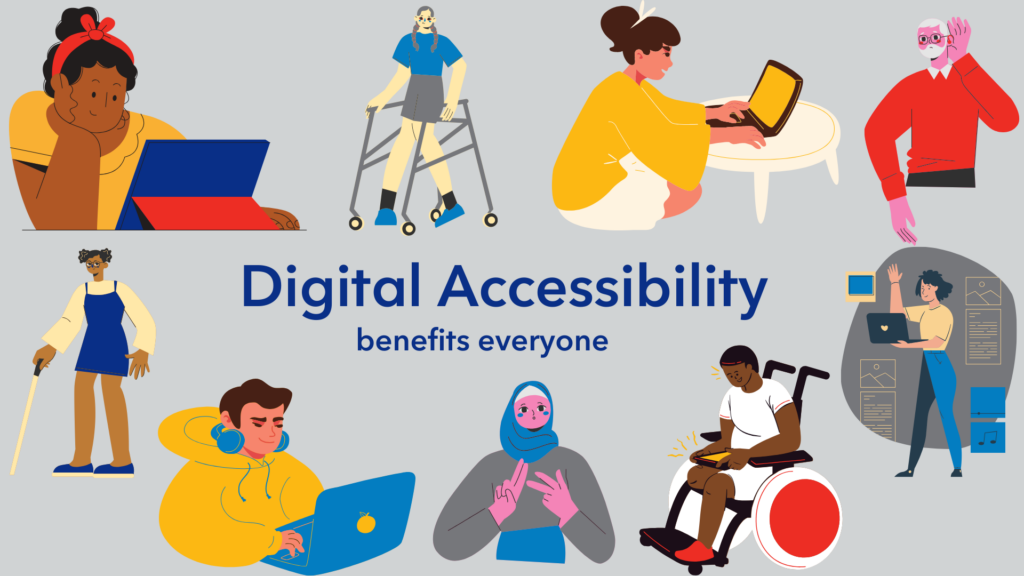
When I think back to my own K to 12 experience, I honestly do not remember accessibility being talked about explicitly. I remember one student who used a laptop for typing because handwriting was painful and slow. I remember another who wore headphones during work blocks. At the time, I did not think of those as assistive technologies. They were just tools that helped those students learn.
Now, after being in classrooms as a teacher candidate, I see how much design choices matter. Accessibility is not just about having a device available. It is about whether the way I design a lesson invites students in or quietly shuts them out.
Assistive Technology Is Not a Bonus
Assistive technology is often framed as something extra, like a support or modification. But for many students, it is the only way they can access the learning in the first place.
In BC classrooms, a significant number of students have identified diverse learning needs. And many more have needs that are not formally diagnosed. When I think about that, I realize that accessibility is not about a small minority. It is about designing for real classrooms.
The Accessibility Practices We Often Miss
Here are a few practices I see overlooked often, including by myself.
1. Alt Text That Actually Describes the Image
I used to think adding alt text meant writing something quick like “students working” or “classroom photo.” Technically, that is alt text. But it is not meaningful.
If the image is conveying important information, the alt text should reflect that. For example, instead of writing “graph,” I could write, “Bar graph showing steady growth in reading scores from September to January, with the largest increase between November and December.” That level of detail changes the experience for someone using a screen reader. It makes the visual content perceivable.
I have also learned that decorative images should have empty alt text so they are skipped. That was something I did not know before. I used to describe everything, which can actually make navigation more frustrating.
2. Headings That Are Just Bigger Fonts
This is one I am guilty of. In Google Docs and WordPress, it is easy to make text bigger and bold and call it a heading. But screen readers rely on actual heading styles to navigate. If I skip from Heading 1 to Heading 3 because it “looks better,” that creates a structural gap.
Using proper heading hierarchy is not about aesthetics. It is about operability. Someone using a screen reader can jump from heading to heading to understand the layout of the page. Without that structure, the page becomes a wall of text.
3. Colour Contrast
I love soft, neutral colours. Light grey text on a white background looks clean to me. But clean does not always mean accessible.
I was surprised to learn how many colour combinations fail contrast checks. Something that looks fine on my laptop might be unreadable for someone with low vision or colour blindness.
This is one of those practices that benefits everyone. High contrast text is easier to read when you are tired, on a small screen, or in bright light.
4. Captions That Are Never Edited
Automatic captions on platforms like YouTube are convenient, but they are not perfect. I have uploaded videos and felt relieved when the captions appeared. Then I actually read them.
Names are wrong. Punctuation is missing. Subject specific vocabulary gets distorted. If a student relies on captions, those errors matter.
Editing captions takes time. But if I am assigning a video as part of learning, that time is part of the work. Accessibility is not an afterthought. It is embedded in the design.
5. PDFs That Are Essentially Photos
This one surprised me. A scanned PDF might look clear and readable to me. But to a screen reader, it can be an image with no readable text.
That means the content is not perceivable unless it is properly formatted with selectable text and tagged structure. I have definitely uploaded PDFs in the past without thinking about that.
Evaluating Tools With Intention
This week also pushed me to think about how we evaluate educational technology. The SAMR model asks whether a tool is substituting, augmenting, modifying, or redefining learning. The Triple E Framework focuses on engagement, enhancement, and extension.
I appreciate how the Triple E Framework forces us to ask whether a tool is actually deepening understanding or just making something look more exciting.
For example, an interactive H5P video might feel innovative. But if students are just clicking through without thinking, it might score high on engagement and low on enhancement. And if that video is not captioned or keyboard navigable, it is also excluding learners.
A tool can be high on the SAMR ladder and still be inaccessible. That realization was important for me because innovation without accessibility is not progress.
Why Accessibility Is Still Overlooked
I think digital accessibility is often missed because it feels invisible. If you are not personally using a screen reader or captions, it is easy to forget they exist.
There is also a perception that accessibility is extra work. Something you do if you have time. But the more I reflect on it, the more I agree with the idea that designing for accessibility is not extra but crucial to student success.
When I imagine a student in my future classroom trying to access a resource I created, I do not want their first experience to be a barrier I accidentally built.
Accessibility is about equity and dignity. And it is about being intentional with every heading, every image, every video, and every colour choice. I am realizing that accessible design is not a checklist I complete at the end. It is a mindset I need to carry into every lesson I create.
Further Information
Here is really useful video on digital accessibility that you can watch to deepen your understanding and bring it into your own work:
Leave a Reply